
org-gcal - Google Calendar 이벤트도 Emacs 품 안으로
org agenda로 여러 Org 파일에 분산된 할 일, 일정, 마감일 등을 한눈에 관리할 수 있다. 다른 건 org가 원본이라서 agenda로 표시하는 데 문제가 없다. 문제는 google calendar를 원본으로 사용하는 일정이다. google calendar로 등록한 일정을 org 마크업으로 변환할 방법이 필요하다. org 문서로 만들기만 하면 org agenda로 편입시켜 할 일과 같이 볼 수 있다.
org-gcal 설정 - google calendar와 org 동기화
org-gcal 패키지를 사용하면 google calendar 이벤트를 org로 import할 수 있다. 반대로도 가능한데 그 기능은 안 써봤다. import하면 아래와 같은 형식으로 저장된다.
* 세키로
  :PROPERTIES:
  :TRANSPARENCY: transparent
  :org-gcal-managed: gcal
  :END:
  :org-gcal:
  <2026-09-30 Wed 22:30-23:00>
  :END:
org 마크업 파일로 만들 수만 있다면 org agenda에 붙이는 건 쉽다.
구글 개발자 콘솔에서 client id와 client secret 생성
emacsmirror/org-gcal - github.com 페이지를 참고해서 Google Calendar API를 호출할 수 있는 환경을 세팅한다. 그대로 따라 하면 된다. token만 발급해서는 안 되고 프로젝트와 클라이언트까지 만들어야 해서 좀 더 귀찮을 뿐이다.
- Go to Google Developers Console
- Create a project (with any name)
- Click on the project
- Click on the hamburger menu at the upper-left, then APIs & Services, then Credentials.
- Set up a consent screen. Give the application a name and set it up as type “external application”, and accept the defaults for everything else. You should not need to verify the application, because only your user will be using it.
- Once you’ve set up a consent screen (this is required), click on Create Credentials and Oauth client ID with Application type Desktop (or Other, if Desktop is not present).
- Click on Create Client ID
- Record the Client ID and Client secret for setup.
- Under the same APIs & Services menu section, select Library
- Scroll down to Calendar API. Click the Enable button to enable calendar API access to the app you created in steps 5 & 6. . Go to Google setting page to check the calendar ID.
- Go to Google setting page and click the gear-shaped settings icon in the upper right, then select “Settings” from the drop down list.
- Select the “Setting for my Calendars” tab on the left, which will display a list of your calendars.
- Select the calendar you would like to synchronize with. This will take you to the “Calendar Settings” page for that calendar. Near the end is a section titled “Integrate Calendar”. Following the XML, ICAL, and HTML tags, you will see your Calendar ID.
- Copy the Calendar ID for use in the settings below, where you will use it as the first element in the org-gcal-fetch-file-alist for associating calendars with specific org files. You can associate different calendars with different org files, so repeat this for each calendar you want to use.
만든 client id와 client secret은 org-gcal 세팅에서 사용한다.
패키지 설치 및 설정
(package! org-gcal :pin "b826356a01a7484bae6245a695059a6f8d36726a")
Doom Emacs에서는 위와 같이 설정하면 된다. Doom Emacs를 사용하지 않는다면 use-package로 설치하는 방법을 참고한다.
저장 디렉터리, 키, 접근할 google calendar를 설정한다.
(defvar my/org-gcal-directory (file-truename "~/org/calendar")
  "Directory for org-gcal synced files.")

(defun my/auth-source-get-secret (host user)
  (when-let ((entry (car (auth-source-search :host host :user user :max 1)))
             (secret (plist-get entry :secret)))
    (funcall secret)))

(when-let ((client-id (my/auth-source-get-secret "org-gcal" "client_id"))
           (client-secret (my/auth-source-get-secret "org-gcal" "client_secret")))
  (setq org-gcal-client-id client-id
        org-gcal-client-secret client-secret
        org-gcal-fetch-file-alist
        (let (alist)
          (dolist (name '("main" "break") (nreverse alist))
            (when-let (cal-id (my/auth-source-get-secret "org-gcal" name))
              (push (cons cal-id (expand-file-name (format "%s.org" name) my/org-gcal-directory)) alist)))))
  (require 'org-gcal))
org-gcal에서 google calendar 이벤트를 org 마크업으로 변환해 저장할 디렉터리가 필요하다. client id, client secret, calendar id를 Auth-source에 저장하고 거기서 값을 읽어 사용하게 했다.
machine org-gcal login client_id password [CLIENT-ID]
machine org-gcal login client_secret password [CLIENT-SECRET]

machine org-gcal login main password [CALENDAR-ID]
machine org-gcal login break password [CALENDAR-ID]
~/.authinfo.gpg 혹은 ~/.authinfo 파일에 위와 같이 키 내용을 적어준다.
암호화는 GPG를 사용
plstore(plist store)로 OAuth2 캐시를 암호화해 로컬에 저장한다. 암호화해 gpg를 사용하도록 설정한다.
(require 'plstore)
(if-let (key-id (my/auth-source-get-secret "plstore" "encrypt-to"))
    (add-to-list 'plstore-encrypt-to key-id)
  (message "plstore: encrypt-to key not found in auth-source"))
gpg key도 Auth-source에 아래처럼 저장한다.
machine plstore login encrypt-to password [GPG-KEYID]
사용하는 함수
org-gcal-fetch- google calendar로부터 이벤트를 가져오는 함수
org-gcal-sync-tokens-clear- 코드 버그로 이벤트 동기화가 깨져서 새로 받아오고 싶을 때, 캐시를 날리는 함수
지금은 google calendar를 org로 import하는 단방향 싱크만 사용한다.
org로 저장한 google event 정보를 agenda 파일로 설정
(defvar my/org-gcal-directory (file-truename "~/org/calendar")
  "Directory for org-gcal synced files.")

(setq org-agenda-files (list
                        ;; ...
                        my/org-gcal-directory))
agenda를 만들 때 사용하도록 org-gcal로 동기화한 디렉터리를 org-agenda-files 리스트에 추가한다
M-x org-agenda
이후 프롬프트에서 a (Agenda for current week or day) 키를 입력하면 아래처럼 google event를 볼 수 있다.
             8:00 ┄┄┄┄┄ ┄┄┄┄┄┄┄┄┄┄┄┄┄┄┄
log:         9:00-9:30  자출 🚲
log:         9:30-19:30 office 🏢
            10:00 ┄┄┄┄┄ ┄┄┄┄┄┄┄┄┄┄┄┄┄┄┄
            12:00 ┄┄┄┄┄ ← now ───────────────────────────────────────────────
            14:00 ┄┄┄┄┄ ┄┄┄┄┄┄┄┄┄┄┄┄┄┄┄
            16:00 ┄┄┄┄┄ ┄┄┄┄┄┄┄┄┄┄┄┄┄┄┄
            18:00 ┄┄┄┄┄ ┄┄┄┄┄┄┄┄┄┄┄┄┄┄┄
log:        19:30-20:00 자퇴근 🚲
            20:00 ┄┄┄┄┄ ┄┄┄┄┄┄┄┄┄┄┄┄┄┄┄
log:        22:30-23:00 세키로 🎮
log:        23:00-23:30 독서 📖
org 문서에 오늘 스케줄을 on demand로 넣기
매일 만드는 저널 파일에 오늘 일정을 출력하고 싶다. 일정을 가져오는 함수를 만들고 Org-mode babel 확장 기능으로 그 결과를 org 문서에 넣는 방식을 선택했다.
우선 함수부터 살펴보자. my/get-daily-agenda 함수는 인자로 받은 날짜의 이벤트를 org-agenda에서 가져온다.
(after! org-roam
  (defun my/get-daily-agenda (&optional date)
    "Return the agenda for the day as a string."
    (interactive)
    (let ((file (make-temp-file "daily-agenda" nil ".txt")))
      (org-agenda nil "d" nil)
      (when date (org-agenda-goto-date date))
      (org-agenda-write file nil nil "*Org Agenda(d)*")
      (kill-buffer)
      (with-temp-buffer
        (insert-file-contents file)
        (goto-char (point-min))
        (kill-line 2)
        (while (re-search-forward "^  " nil t)
          (replace-match "- " nil nil))
        (buffer-string)))))
아래와 같이 코드 블럭을 만들어 준다.
#+begin_src emacs-lisp :results value raw
  (my/get-daily-agenda "2026-06-12")
#+end_src
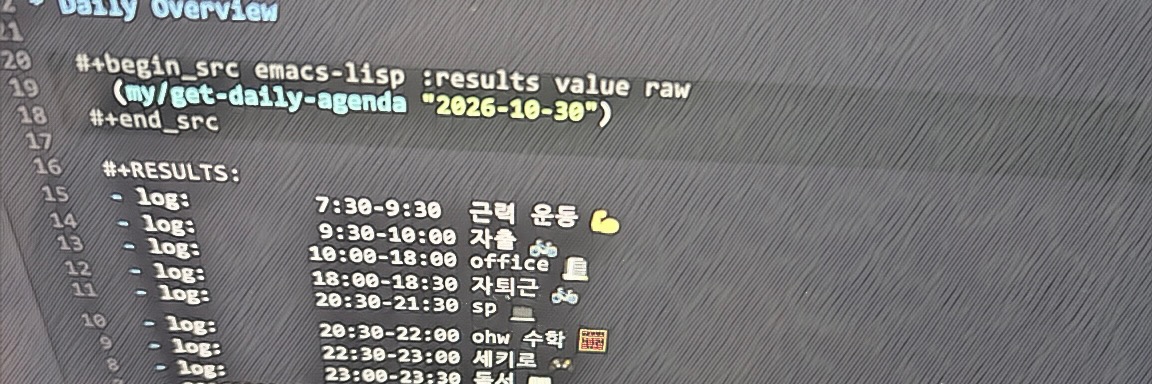
커서를 소스 코드 블럭으로 옮기고 C-c C-c 키를 입력하면 아래처럼 결과가 문서에 추가된다.
#+RESULTS:
- log:         8:00-8:30  자출 🚲
- log:         9:00-18:00 office 🏢
- log:        18:00-18:30 자퇴근 🚲
- log:        22:30-23:00 세키로 🎮
- log:        23:00-23:30 독서 📖
함수에 넘길 날짜를 매번 바꿔야 할까? 개인 지식 관리 시스템으로 사용하는 Org-roam에서는 daily 템플릿에 날짜를 넣어서 자동화했다.
#+title: %<%Y-%m-%d %a>

* Daily Overview

  #+begin_src emacs-lisp :results value raw
    (my/get-daily-agenda "%<%Y-%m-%d>")
  #+end_src
마치며
매일 작성하는 저널이 풍성해졌다. Google Calendar가 편해서 일정 관리를 Emacs로 가져오지는 않을 생각이다. 설정을 마친 뒤에 Doom Emacs에 calendar 모듈이 있고 거기에서 org-gcal을 사용한다는 걸 발견했다. 왜 먼저 안 찾아봤을까?
C-x C-s C-x C-c
링크
- emacsmirror/org-gcal - github.com
- use-package 패키지로 패키지 관리를 더 간단하게 - (emacsian ohyecloudy) - ohyecloudy.com
- Doom Emacs 전환 후기 - (emacsian ohyecloudy) - ohyecloudy.com
- auth-source와 EasyPG 기본 제공 패키지를 사용한 비밀 번호를 포함한 계정 정보 관리 - (emacsian ohyecloudy…
- Introducing Babel - orgmode.org
- Org-roam User Manual - orgroam.com